Serving LLMs with Ollama and vLLM
Open-weight models like Qwen, Llama, and Mistral let you run LLMs locally on your own hardware. To self-host LLMs, you need an inference server that handles requests, manages GPU memory, and exposes an API your application can call. This tutorial covers the two most popular options: Ollama for quick experimentation and vLLM for production LLM deployment.
Both expose an OpenAI-compatible API, so the same client code works with either. We'll use Qwen2.5-7B as the example model.
The Most Popular Two Options
Ollama handles everything automatically. One command installs it, another downloads and runs a model. It manages quantization, memory allocation, and serving without configuration. The tradeoff is less control and lower throughput.
vLLM is the standard for production LLM inference. It uses PagedAttention to manage GPU memory efficiently and continuous batching to maximize throughput. You configure it explicitly, but you get much higher request throughput on the same hardware.
Setup
Create a JarvisLabs instance with an A100 40GB and the PyTorch template.
Ollama
Install with one command:
curl -fsSL https://ollama.com/install.sh | sh
Start the Ollama server in one terminal:
ollama serve
Then, in another terminal, run Qwen2.5:
ollama run qwen2.5:7b
The first run downloads the model (about 4-5GB for the quantized version). After that, you're in an interactive chat:
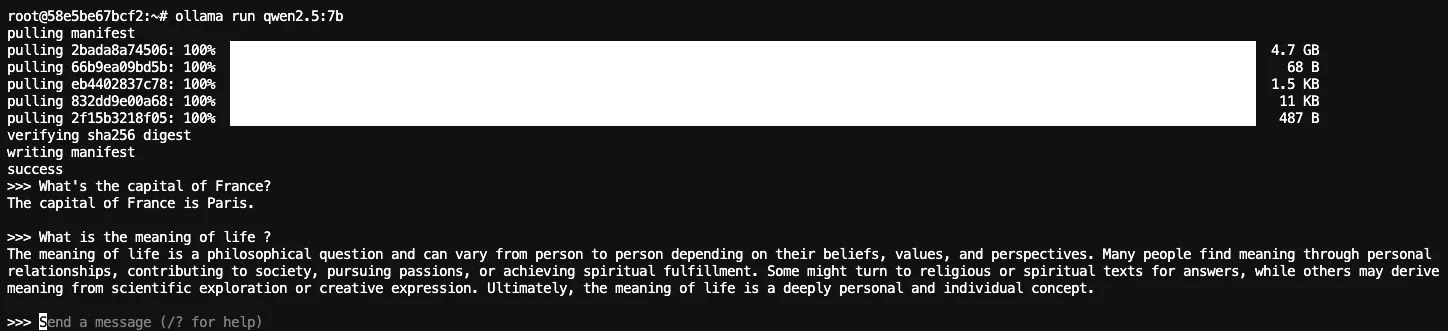
Press Ctrl+D to exit. Ollama keeps the server running in the background.
Ollama exposes an OpenAI-compatible API, so you can use the same code you'd use with OpenAI's API. Test it with curl:
curl http://localhost:11434/v1/chat/completions \
  -H "Content-Type: application/json" \
  -d '{
    "model": "qwen2.5:7b",
    "messages": [{"role": "user", "content": "Hello!"}]
  }'

You can manage models with a few simple commands:
ollama list            # See downloaded models
ollama pull qwen2.5:7b # Download a model without running it
ollama rm qwen2.5:7b   # Delete a model to free up space
vLLM
vLLM is a single pip install:
pip install vllm
Start the server by specifying the model you want to serve. vLLM downloads it automatically from HuggingFace:
vllm serve Qwen/Qwen2.5-7B-Instruct \
  --host 0.0.0.0 \
  --port 8000 \
  --dtype bfloat16 \
  --max-model-len 8192 \
  --gpu-memory-utilization 0.9
A few flags worth knowing:
--dtype bfloat16uses native precision for A100s--max-model-len 8192caps sequence length to save memory--gpu-memory-utilization 0.9reserves 90% of VRAM for the model + KV cache
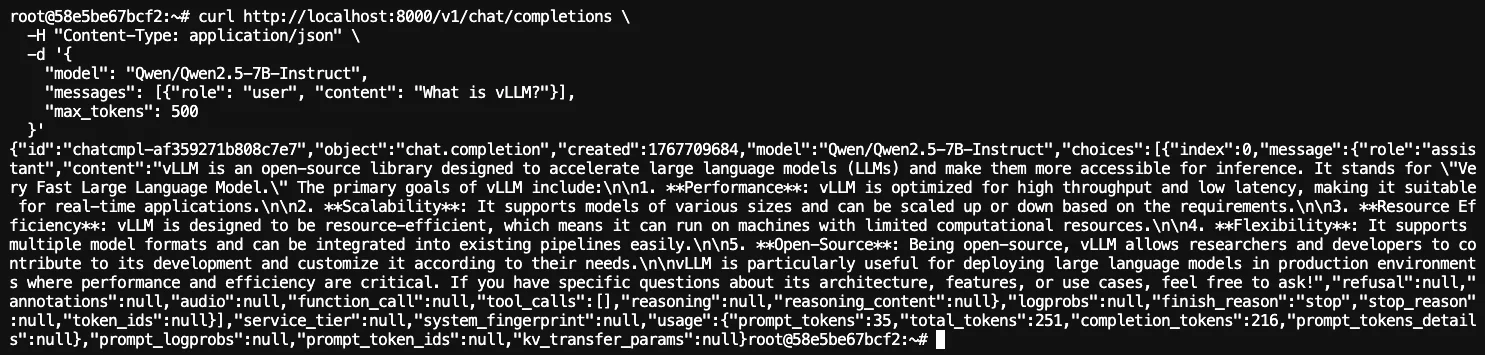
Once you see "Uvicorn running on http://0.0.0.0:8000", the server is ready. Like Ollama, vLLM exposes an OpenAI-compatible API:
curl http://localhost:8000/v1/chat/completions \
  -H "Content-Type: application/json" \
  -d '{
    "model": "Qwen/Qwen2.5-7B-Instruct",
    "messages": [{"role": "user", "content": "What is vLLM?"}],
    "max_tokens": 500
  }'
You should see output something like this:
Accessing Your API Externally
The curl commands above use localhost, which works when you're running them in the JupyterLab terminal on your JarvisLabs instance. But what if you want to:
- Access the API from your browser
- Connect from an application running on your local machine
- Share the endpoint with colleagues
JarvisLabs exposes port 6006 as a public API endpoint. Any service running on this port gets a public URL you can access from anywhere.
Ollama on Port 6006
Set the OLLAMA_HOST environment variable to change the port:
OLLAMA_HOST=0.0.0.0:6006 ollama serve
Then run your model as usual:
ollama run qwen2.5:7b
vLLM on Port 6006
Change the --port flag:
vllm serve Qwen/Qwen2.5-7B-Instruct \
  --host 0.0.0.0 \
  --port 6006 \
  --dtype bfloat16 \
  --max-model-len 8192 \
  --gpu-memory-utilization 0.9
Getting Your Public URL
Once your server is running on port 6006, get the public URL from the JarvisLabs dashboard. Click the API button on your instance to see the endpoint:

Click the copy icon as seen above 👆. You can now use this URL from anywhere:
curl https://<your-instance-url>/v1/chat/completions \
  -H "Content-Type: application/json" \
  -d '{
    "model": "qwen2.5:7b",
    "messages": [{"role": "user", "content": "Hello!"}]
  }'
SSH Port Forwarding
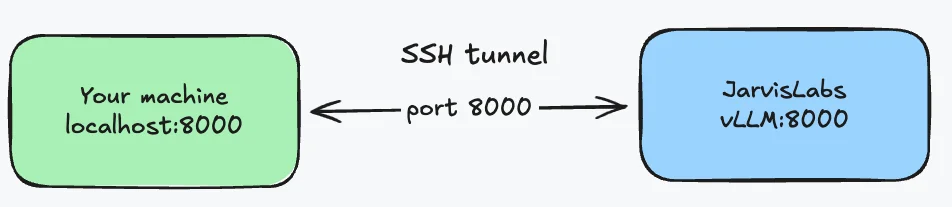
The public URL works well for sharing with others, but sometimes you just want private access from your own machine. SSH port forwarding creates a tunnel that connects a port on your local machine to a port on the JarvisLabs instance. If you haven't set up SSH yet, follow the SSH setup guide first.
Get the SSH command from the dashboard by clicking the copy icon next to SSH:
ssh -o StrictHostKeyChecking=no -p 11114 root@sshd.jarvislabs.ai
Add -L 8000:localhost:8000 to forward port 8000. This means: forward my local port 8000 → to localhost:8000 on the remote instance.
ssh -L 8000:localhost:8000 -o StrictHostKeyChecking=no -p 11114 root@sshd.jarvislabs.ai
Keep this terminal open. Start vLLM on port 8000 inside the instance (via JupyterLab or another terminal), and you can hit it from your local machine:
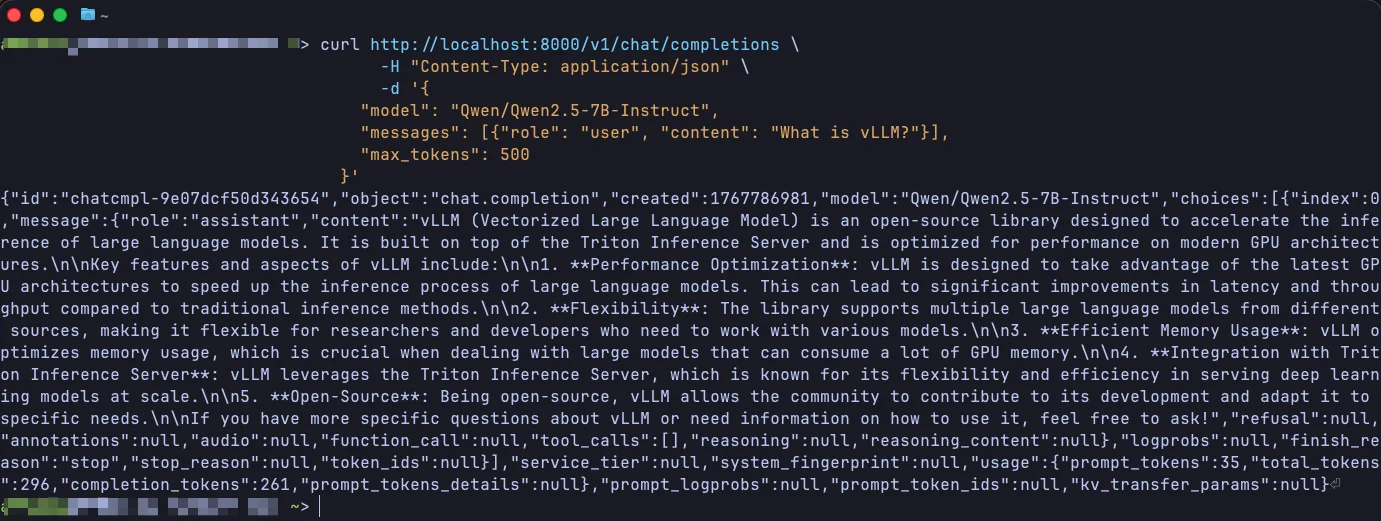
The model runs on JarvisLabs GPUs, but from your machine it's just localhost.
Using the OpenAI Python Client
Since both Ollama and vLLM expose OpenAI-compatible APIs, you can use the official OpenAI Python client to interact with them. Point it at localhost when running code inside your JarvisLabs JupyterLab instance (or via SSH port forwarding as we learned above), or use your public API endpoint URL to connect from anywhere else:
from openai import OpenAI

client = OpenAI(
    base_url="http://localhost:8000/v1",  # Or your JarvisLabs API endpoint URL
    api_key="dummy"  # Required by the client but ignored by local servers
)

response = client.chat.completions.create(
    model="Qwen/Qwen2.5-7B-Instruct",
    messages=[
        {"role": "system", "content": "You are a helpful assistant."},
        {"role": "user", "content": "Explain machine learning in one sentence."}
    ],
    max_tokens=100
)

print(response.choices[0].message.content)
You should see output something like this:
Machine learning is a method of teaching computers to recognize patterns in data and make predictions or decisions without being explicitly programmed.
Streaming responses work just like they do with OpenAI's API:
stream = client.chat.completions.create(
    model="Qwen/Qwen2.5-7B-Instruct",
    messages=[{"role": "user", "content": "Write a haiku about code"}],
    stream=True
)

for chunk in stream:
    if chunk.choices[0].delta.content:
        print(chunk.choices[0].delta.content, end="", flush=True)
This makes it easy to swap between local models and OpenAI in your applications. Just change the base_url.
Which One to Use
Ollama works best for local AI development and quick experiments. The automatic model management saves time when trying different models. It runs well on consumer hardware and requires no configuration.
vLLM makes sense for production deployments. PagedAttention and continuous batching provide significantly higher throughput under load. If you're building an API that serves multiple concurrent users, vLLM handles the load more efficiently.
For a single user running experiments, Ollama is simpler. For an application serving requests, vLLM scales better. When choosing the best LLM to run locally, consider your throughput requirements and whether you need the flexibility of Ollama's model management or vLLM's production-grade performance.
Next Steps
You can start experimenting with this on JarvisLabs. We have A5000, A6000, A100, H100, and H200 GPUs available. Check the pricing page for current rates.
If you run into any issues or have questions, reach out and let us know.