Setup SSH
Connect to Jarvislabs.ai instance through SSH.
You can connect to Jarvislabs.ai using the Secure Shell Protocol (SSH), which provides a secure channel over an unsecured network.
Checking for existing SSH keys
Before you generate an SSH key, you can check to see if you have any existing SSH keys. Try the below steps.
- Open Terminal/PowerShell
- Enter the below command to see if you have an already existing SSH key.
ls ~/.ssh/
You should see \*.pub file here.
you can use below command to read the file.
cat ~/.ssh/id_rsa.pub
The file name might vary but will be inside the ~/.ssh/ directory.
Copy the entire contents of the file and paste them into settings page SSH section.
If you receive an error that ~/.ssh/ doesn't exist, you do not have an existing SSH key pair in the default location. You can create a new SSH key pair by following the next steps.
Creating SSH keys
Generate an SSH key pair using the below command from your system terminal or PowerShell.
ssh-keygen -t ed25519
Copy SSH Keys you just generated from here
cat ~/.ssh/id_ed25519.pub
Adding SSH keys to JarvisLabs
The SSH section on the settings page shows all the SSH keys you have in your account. You can add/delete the SSH keys from here.
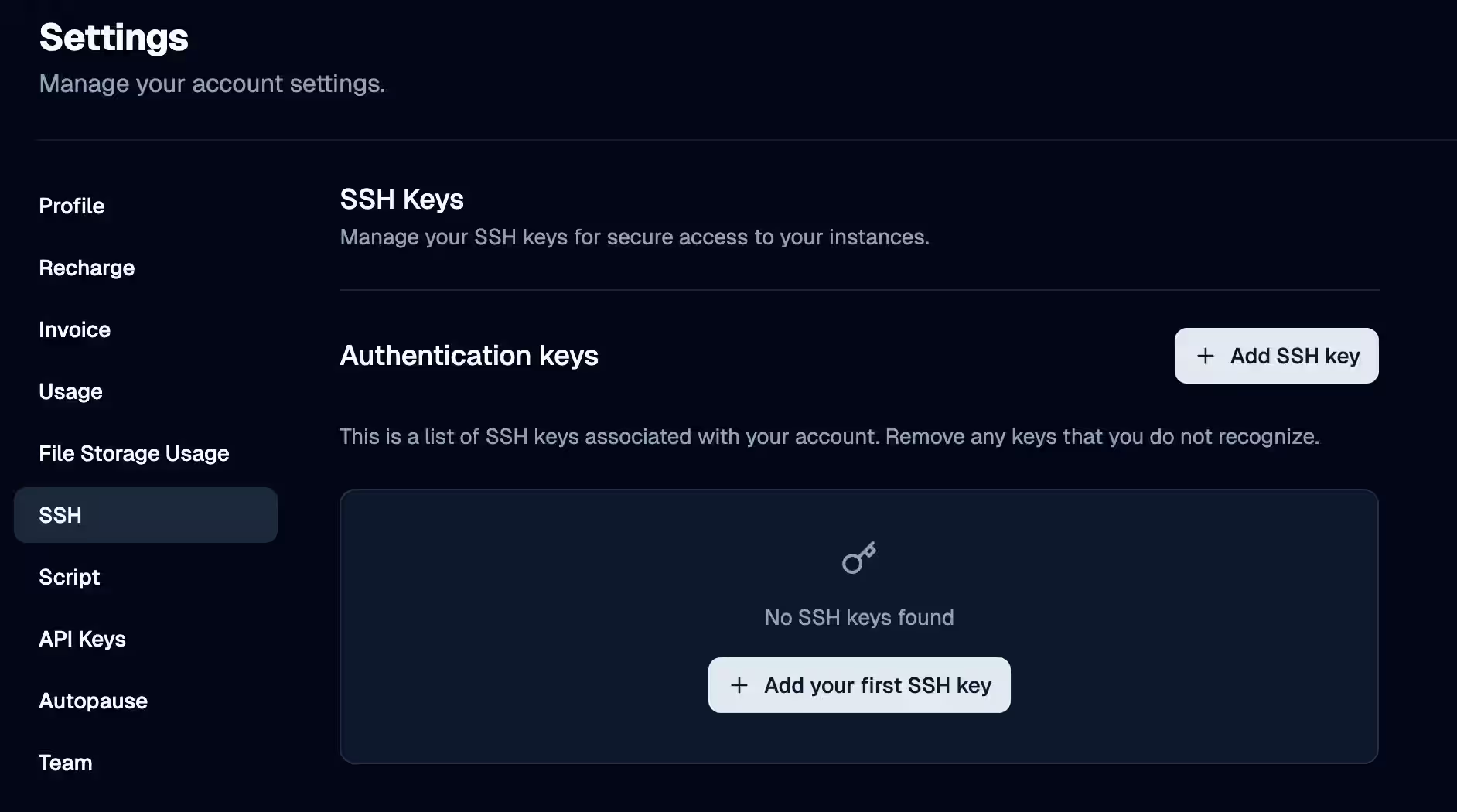
Ensure you pause and resume all running instances so that they recognize the newly added SSH keys.
Would you be interested in learning more about SSH? Check out the amazing docs on GitHub.
Connecting to Jarvislabs instance via terminal
To connect to the instance, press the SSH button for the desired instance to copy the SSH command automatically. Then, paste this command into your terminal to establish the connection.

The SSH string will look something like this
ssh -o StrictHostKeyChecking=no -p port_number domain_name
If you have chosen a custom location to store your SSH key, then do not forget to add the location as -i path while connecting to Jarvislabs.ai instances.
ssh -i /path/to/your/key/id_rsa -p port_number domain_name
Troubleshooting SSH Connection Issues
Here are solutions to common SSH connection problems:
Permission Denied (publickey)
If you see this error, try these steps:
# 1. Verify your SSH key permissions (should be read-only for user)
chmod 400 ~/.ssh/id_ed25519
chmod 400 ~/.ssh/id_rsa

# 2. Verify your SSH key is being used
ssh -v -p port_number domain_name
Connection Timed Out
This usually indicates a network or firewall issue:
- Check if your firewall is blocking port 22 (or your custom SSH port)
- Verify you're using the correct port number
- Ensure your instance is running
Host Key Verification Failed
If you see this error after instance restart:
# Remove the old host key
ssh-keygen -R "[hostname]"

# Then try connecting again
ssh -p port_number domain_name
Before you connect, make sure to:
- Upload your SSH public key in Settings.
- Pause and resume the instance after adding the key so the change takes effect.
- Use the correct username and port in your SSH command.