ComfyUI on Jarvislabs
ComfyUI is a visual, node-based way to build repeatable image and video workflows. On Jarvislabs, the GPU, ComfyUI, Manager, and a shared model library are ready for you, so you can move from an idea to a working result in minutes.
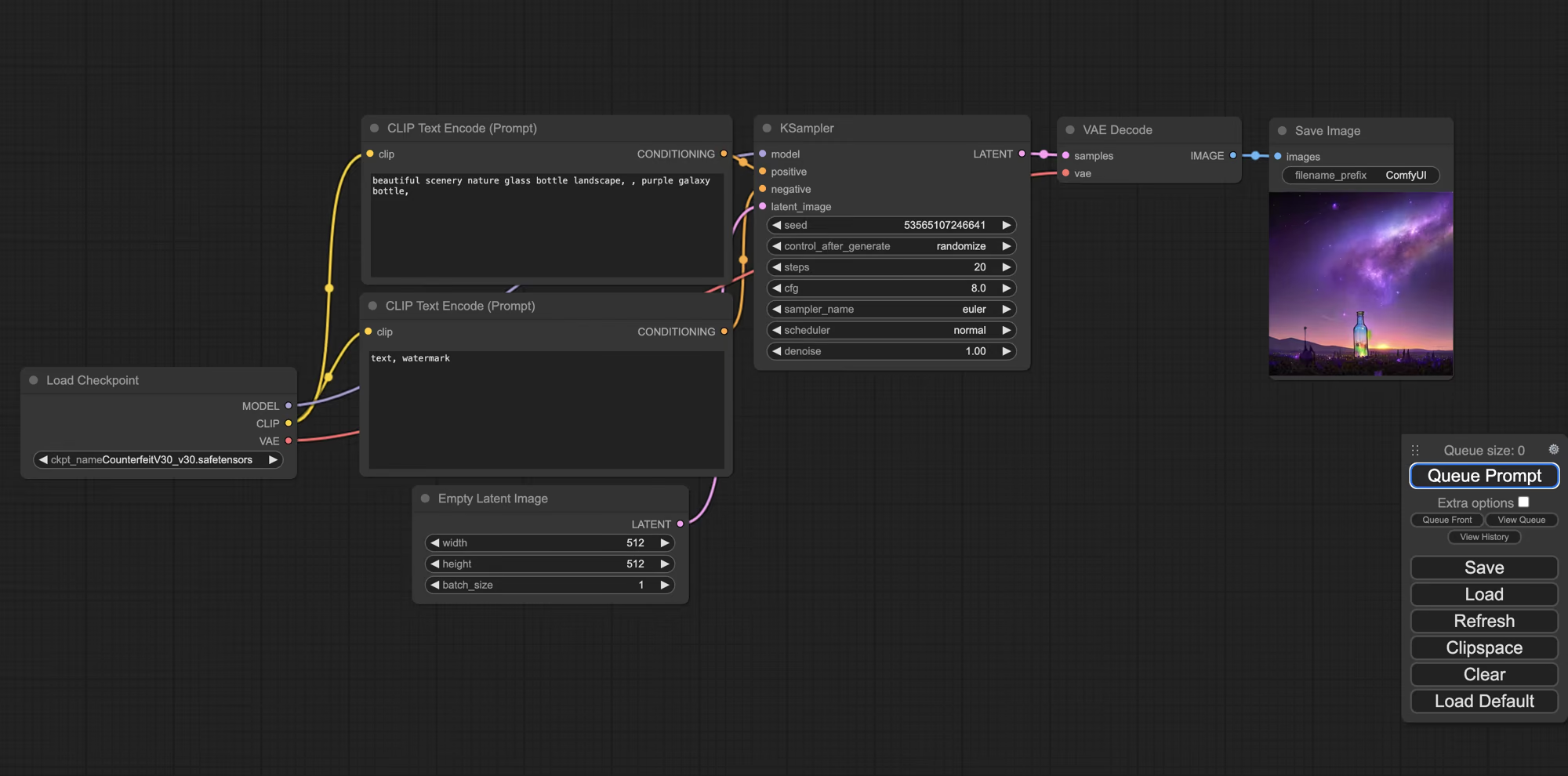
Every instance includes a tested ComfyUI release, ComfyUI Manager, 23 custom node packs and a 1.16 TB shared model library. Those packs add 1,634 nodes to the ones ComfyUI ships with, so 2,482 are available before you install anything. The models cost you no download time and no disk space — they are read from a library shared across instances rather than copied onto yours.
New to ComfyUI itself? The official documentation covers the interface and node concepts. This page covers what is specific to running it here.
Choose your path
You do not need to understand every node before you begin. Start with a template, make one successful run, and then open the graph to see how the pieces connect.
Get started
- Launch an instance from the ComfyUI template.
- Open the API link on the instance page. It opens the ComfyUI interface in your browser.
- Wait about a minute. The instance is still setting up your model folders. A blank page or gateway error during that time is normal — refresh.
- Select Browse Templates and pick one. For a result in the next thirty seconds, pick SDXL Simple.
- Change the prompt and select Queue Prompt.
Your image appears in the output node and is saved to /home/ComfyUI/output.

Every framework we host uses that label. You do not need to write any code. Running workflows from code is covered further down.
Speed to expect depends on the workflow, model, resolution, and GPU. The first render after a restart can take longer while the model loads.
What is on the machine already
Browse Templates offers hundreds of workflows, and most of the ones that can run here at all now run without downloading anything: of the 165 shipped templates whose models we are able to host, 128 start immediately. The list below is what is already on the instance.
SDXL — 7 checkpoints
| Model | Good for |
|---|---|
sd_xl_base_1.0 + sd_xl_refiner_1.0 | the standard two-stage SDXL pipeline |
sd_xl_turbo_1.0_fp16 | a usable image in one to four steps |
juggernautXL_v9 | photographic work |
albedobaseXL_v21 | general purpose, forgiving of short prompts |
realvisxlV40 Lightning | photoreal, four-step |
turbovisionxl v431 | fast, baked VAE |
With sdxl_vae, and the Hyper-SDXL-8steps and sdxl_lightning_4step LoRAs
for cutting step count.
Prompt to try: a photograph of a red vintage bicycle leaning against a weathered blue wall, late afternoon sunlight, shallow depth of field
SD 1.5 — the base, plus the ecosystem built on it
v1-5-pruned-emaonly-fp16, with vae-ft-mse-840000 and kl-f8-anime2, and the
Hyper-SD15 8- and 12-step LoRAs.
Most of the ControlNet, IP-Adapter and AnimateDiff files below are SD 1.5, which is why this base is worth keeping even though SDXL is newer.
Prompt to try: a glass terrarium on a windowsill, moss and tiny ferns inside, morning light through rain-streaked glass
FLUX — schnell and klein 4B, the openly licensed ones
flux1-schnell with ae, clip_l and t5xxl_fp16. Four steps, no CFG.
FLUX.2 klein 4B at fp8, both the tuned and the base build.
FLUX [dev], FLUX.2 [dev] and FLUX.2 klein 9B are a different licence and are
not here — see
what is not in the library.
Prompt to try: a hand-painted cafe chalkboard reading "FRESH BREAD DAILY" in looping script, warm interior light
ControlNet — 22 models
SD 1.5: canny, depth (.pth and fp16), openpose, lineart, seg, tile,
instruct-pix2pix, QR-code monster, and the AnimateDiff sparsectrl RGB model.
SDXL: controlnet-union-sdxl-1.0 (one model, many control types),
controlnet-canny-sdxl-1.0-mid, mistoLine_fp16, diffusers_xl_canny_full,
sargezt_xl_softedge, and the control-lora rank-256 set for canny, depth and
sketch.
IP-Adapter and faces
Twenty-one IP-Adapter files, both CLIP vision encoders
(CLIP-ViT-H-14, CLIP-ViT-bigG-14), and the FaceID LoRA family for SD 1.5 and
SDXL — plus four face-restore models, PhotoMaker, and InsightFace support.
Video and motion
AnimateDiff: fifteen motion models, AnimateLCM_sd15_t2v and v3_sd15_mm, and
the v2_lora_ZoomIn / ZoomOut camera LoRAs.
Also LivePortrait (5 files) and MimicMotion for driving a still image from a reference video.
Wan video — 2.1 and 2.2, the largest family on the store
Wan 2.2, 14B at fp8 in high- and low-noise pairs: text-to-video,
image-to-video, speech-to-video, and the Fun variants for control, inpainting and
camera moves. Also the 5B ti2v, fun_control and fun_inpaint builds — the
ones to try first on a 23 GB card.
Wan 2.1: t2v at 1.3B and 14B, i2v 480p at 14B, and the 1.3B Fun control,
inpaint and camera models.
The speed LoRAs are the point. wan2.2_t2v_lightx2v_4steps and its i2v
counterpart cut a video from twenty-odd steps to four.
Prompt to try: a paper boat drifting down a rain gutter, water catching the streetlight, slow dolly alongside
Qwen-Image — generation and instruction editing
qwen_image and qwen_image_2512 for generation; qwen_image_edit at 2509 and
2511 for editing by instruction. All fp8, with the qwen_2.5_vl text encoder and
the Qwen-Image-Lightning 4- and 8-step LoRAs.
Prompt to try: a market stall of glass jars filled with dried herbs, handwritten labels, overcast daylight
HiDream, SD 3.5, Z-Image and Krea
HiDream i1 in dev, fast and full at fp8, plus o1_image. sd3.5_large at fp8.
z_image and z_image_turbo. krea2_turbo at fp8.
Prompt to try: an overgrown greenhouse at dusk, ferns pressed against cracked glass, one lamp still burning inside
Audio, 3D and restoration
ACE-Step and stable_audio for music and sound design, plus minimax_music3.
Hunyuan3D v2.1 and the multi-view turbo build, with TripoSplat, for 3D.
SeedVR2 at 3B and 7B for video restoration and upscaling, svd_xt for
image-to-video, and SAM 3.1 for segmentation.
Prompt to try (ACE-Step, text-to-music): a slow lo-fi hip hop loop, dusty vinyl crackle, muted rhodes chords, brushed drums, 80 bpm
Other
Stable Cascade (stage_a / stage_b / stage_c) · IC-Light for relighting ·
SDXS · six upscale models · SAM and Ultralytics for segmentation ·
GroundingDINO · BLIP captioning.
FLUX [dev], FLUX.2 [dev], FLUX.2 klein 9B and LTX 2.5 are licence
exclusions — see what is not in the library.
Beyond those, a workflow can still call for a model we do not keep, and ComfyUI
will fetch it onto the instance when it does.
This page says what is actually on the store today rather than what is planned.
This is the thing to know about the larger library: a model being preloaded says nothing about whether your card can hold it. The heaviest single file on the store is a 14B Wan video model at 32 GB — more than a 23 GB card has. Wan 2.2, Qwen-Image and HiDream at fp8 sit around 14–20 GB of weights before you add a text encoder and the latents.
On a smaller card, reach for the 5B Wan builds, the fp8 entry rather than bf16, and the 4-step LoRAs. See how to fix out-of-memory errors.
Where your files go
Most workflows start with an image or video of yours. Any node with an image input has an upload button, and the file lands in /home/ComfyUI/input.
Everything you generate is written to /home/ComfyUI/output, whether or not you save it from the browser — so there is no need to right-click each result. Video workflows fill that folder quickly, and it is usually the reason an instance runs short of space:
du -sh /home/ComfyUI/output
To move files on or off the instance, see SSH and Download Data.
What is saved when you pause
Your ComfyUI workflows, downloaded models, custom nodes, and generated files remain available when you pause and resume an instance. Download important outputs before deleting the instance, because deletion cannot be undone.
Pausing keeps /home. Deleting does not. Your outputs are the one thing that cannot be recreated.
Models
The ones already there
Open any model dropdown and it is already full. Those files live in a read-only shared library and are linked into your model folders when the instance starts. They are shared across every instance, which is why they cost you nothing.
The library is 283 files, about 1.16 TB, and it spans two generations. The current one: Wan 2.1 and 2.2, Qwen-Image, HiDream, FLUX, SD 3.5, Z-Image and Krea. Underneath it the older SDXL, SD 1.5 and Stable Cascade stack, kept because the ControlNets, IP-Adapters and AnimateDiff motion modules that most community workflows reach for are built on it. About 221 files are offered directly in the loader dropdowns; the rest are support files — text encoders, VAEs, CLIP vision — that nodes reach for themselves.
What is not in the library, and why
Some well-known models are deliberately absent, and it is a licensing decision rather than a judgement on the model.
FLUX [dev] weights are the main case, and the same licence covers FLUX.2 [dev] and FLUX.2 klein 9B. It does not permit using the weights to power a commercial service, which is exactly what preloading them onto rented GPUs would be. So we do not ship them, and ComfyUI Manager fetches them onto your instance instead — at which point the licence obligation is yours to meet rather than ours to breach on your behalf. FLUX schnell and FLUX.2 klein 4B are openly licensed, so they are on the store and need no download.
LTX 2.5 is gated at the source: the weights are behind an access request, and a download without it returns a licence notice rather than a model. LTX-Video 2B is on the store; 2.5 you request and fetch yourself.
Community fine-tunes — the Realistic Vision and Juggernaut family, and most of what is popular on model-sharing sites — are the same story for a different reason. Their creators set individual licence terms, and there is no single one we could accept on behalf of everyone using an instance.
Both install through Manager in one click, onto storage that survives pause and resume. The preloaded library exists to get you to a first image without waiting; it is not meant to be everything you will ever want.
Adding your own
When a workflow is missing a model, ComfyUI shows a download prompt. Use it — the file is fetched onto the instance, not to your laptop.
To download manually, put the file in the folder matching its type, then press Refresh in ComfyUI, since dropdowns are only read when the page loads.
| Type | Folder |
|---|---|
| Checkpoint | /home/ComfyUI/models/checkpoints |
| LoRA | /home/ComfyUI/models/loras |
| VAE | /home/ComfyUI/models/vae |
| ControlNet | /home/ComfyUI/models/controlnet |
| Text encoder | /home/ComfyUI/models/text_encoders |
cd /home/ComfyUI/models/checkpoints
wget --content-disposition 'https://huggingface.co/<repo>/resolve/main/<file>.safetensors'
A LoRA needs one extra step: add a Load LoRA node after your checkpoint loader. Forty-six LoRAs are already in the library. The step-cutting ones matter most: sdxl_lightning_4step and the Hyper-SD 8- and 12-step files for SDXL and SD 1.5, the lightx2v 4-step pairs for Wan 2.2 text-to-video and image-to-video, and Qwen-Image-Lightning at 4 and 8 steps. Each turns a twenty-step render into a handful.
Delete the partial file and start again. Some hosts ignore the resume request and send the whole file, which gets appended to what you have. The result is larger than the original, looks fine, and fails only when a workflow loads it. Avoid wget -c and curl -C -.
Using a LoRA you trained or downloaded elsewhere
A LoRA you trained yourself, or picked up from somewhere that is not a direct download, has to reach this instance before ComfyUI can see it. Each instance has its own /home, so the file has to be copied across rather than appearing on its own.
| Route | When it fits |
|---|---|
| Shared Filesystem attached to the instance | You reuse the same files often. Attach it to every instance that needs them and nothing is copied twice. |
| Upload over SSH or the JupyterLab file browser | A one-off file from your own machine |
wget straight onto the instance | The file has a direct URL |
Then treat it like any other model: put it in /home/ComfyUI/models/loras, press Refresh, and add a Load LoRA node after your checkpoint loader.
A LoRA trained on SDXL will not work with a Qwen or Flux checkpoint. If the output looks like the LoRA is being ignored, or comes out visibly broken, a family mismatch is the first thing to check.
Custom nodes
Open Manager → Custom Nodes and search for the node pack you need. In the legacy Manager interface, this menu is called Install Custom Nodes. Select Install, wait for dependencies to finish, then Restart ComfyUI and reload the page. Nodes installed under /home survive pause and resume.
Manager can also find dependencies for an existing workflow: open a workflow that needs nodes you do not have, then choose Install Missing Custom Nodes. Review unfamiliar nodes before installing them; custom nodes are third-party code that runs on your instance.
Updated walkthrough
For a current end-to-end example, see AI videos, music, and 3D models from your terminal. It demonstrates a modern Wan 2.2 workflow on Jarvislabs, including GPU selection, model setup, API execution, and downloading the result. For ComfyUI fundamentals, use the official ComfyUI documentation.
The ComfyUI version is tested as part of the Jarvislabs template. If you need a newer version, contact us so we can provide a tested template update.
To install one that Manager does not list, clone it into custom_nodes — and read its README first, since a custom node is code that runs on your instance:
cd /home/ComfyUI/custom_nodes
git clone <repository-url>
cd <node-folder>
[ -f requirements.txt ] && pip install -r requirements.txt
Restart ComfyUI from Manager. If the node does not appear, contact support with the node name and the error shown in the interface.
App Mode
App Mode hides the node graph and shows a workflow as a plain form: the inputs you picked, a run button, and the results underneath. It comes with the ComfyUI we ship, so there is nothing to install.
It is a view you build once — it does not appear on every workflow by itself. Open a workflow, then from the workflow menu choose Build app:
- Choose inputs. Click the node parameters you want people to control — a prompt box, an image loader, a step count.
- Choose outputs. Click the nodes whose results should appear. At least one is required, usually Save Image or Save Video.
- Preview. Check the layout, then Create.
The same menu then offers Enter app mode and Enter node graph, so you can move between the form and the full graph whenever you want. Edit app changes what is exposed.
Open a workflow that has not been built this way and it tells you so — "This workflow hasn't been built for app mode." That is expected. Build it first.
The definition is stored inside the workflow's own .json. It sits on your volume with everything else, it survives pause and resume, and you share it by sending the file — whoever opens it gets the form, not just the graph.
The examples that ship with it
ComfyUI includes twelve workflows already built as apps, and it is worth knowing what they are before you open one. Eight are demonstrations of Comfy's paid cloud nodes — Gemini, Kling, Grok, Recraft. Those call an outside service and need a Comfy account with credits; they do not run on your instance's GPU at all.
The remaining four are ordinary local workflows, and each wants a model we do not keep on the store. App Mode itself works fine; you download the model first.
If you want an app that runs on your own GPU with nothing to fetch, build one from a workflow you have already seen run. Anything under what is on the machine already is a safe starting point.
Use it from code
The ComfyUI process already serves both the interface and its API on the same port. There is no server to set up. You need the address and your workflow in API format.
1. Export the workflow
ComfyUI saves workflows in two ways, and they are not interchangeable. A normal save keeps the visual layout and is what you drag back onto the canvas. API format is the same graph stripped to what the server needs. Sending the wrong one returns an unhelpful error.
Open the Graph menu — top left, beside the workflow name — and choose Export (API).
Two things catch people out. The menu is labelled Graph, not "Workflow", which is what most tutorials call it. And those tutorials also tell you to switch on developer options in settings first; that is no longer required, and the export item is there by default.
A file already in API format needs no interface at all — point your script at it. A normal workflow file — from Civitai, a colleague, or ComfyUI's own templates — open it once in the browser and export it. The conversion exists only in ComfyUI's browser frontend; no command or endpoint does it.
That one pass is worth it anyway: it is where you find out which custom nodes and models the workflow needs, rather than finding out when a script fails.
2. Change what you need and send it
The exported file is keyed by node ID. You do not build a request by hand — you take the workflow you already tested and change a couple of values:
import json, urllib.request

wf = json.load(open("my-workflow-api.json"))
wf["6"]["inputs"]["text"] = "a photo of a dog"   # the prompt
wf["3"]["inputs"]["seed"] = 987654               # the seed

req = urllib.request.Request(
    "http://127.0.0.1:<forwarded-port>/prompt",
    data=json.dumps({"prompt": wf}).encode(),
    headers={"Content-Type": "application/json"})
print(json.load(urllib.request.urlopen(req))["prompt_id"])
Two things to know. Node IDs come from the graph, so adding or deleting nodes can renumber them — re-export after a structural change, though editing a value in place is safe. And the seed is saved in the file — if you do not overwrite it, every run returns the same image, which looks exactly like the API being broken.
ComfyUI also ships working examples on the instance, including one that follows progress over a WebSocket:
ls /home/ComfyUI/script_examples/
# basic_api_example.py  websockets_api_example.py  websockets_api_example_ws_images.py
3. Get the result
| Endpoint | Purpose |
|---|---|
POST /prompt | Queue a workflow. Returns a prompt_id. |
GET /history/{prompt_id} | Output filenames, once it has finished. |
GET /view | Fetch a generated file by name. |
POST /interrupt | Cancel the running job. |
Outputs also land in /home/ComfyUI/output, so you can collect them with scp instead.
You do not need to expose anything publicly. Use SSH port forwarding to connect securely from your own machine; see the SSH guide.
ComfyUI has no login of its own. Anyone with the address can queue jobs on the GPU you are paying for and read the images it produces. Keep it out of client-side code and public repositories.
Frequently asked questions
Should I run ComfyUI locally or on a cloud GPU?
Run it locally if you already own a GPU with enough VRAM for your workflows and use it often — there is no per-hour cost and no upload step. Use a cloud GPU when you need more VRAM than you own, want the models already downloaded, or only generate in bursts.
| Local GPU | Cloud GPU here | |
|---|---|---|
| Up-front cost | The card | None |
| Ongoing cost | Electricity | Per hour, and pausing stops it |
| Setup | You manage the software environment | Already built and tested |
| Models | You download and store each one | Preloaded on shared storage, no disk of yours used |
| VRAM ceiling | Whatever you bought | Pick per job, change between runs |
The honest version: if you have a suitable GPU and generate daily, local may win on cost. The case for cloud is access to more VRAM, preloaded models, and a maintained environment.
ComfyUI vs Automatic1111 — which should I use?
Automatic1111 is faster to learn: a form with settings, good for straightforward text-to-image and image-to-image work. ComfyUI is a node graph — more to learn up front, but it expresses multi-step and video pipelines that a form cannot, generally uses less VRAM for the same job, and tends to support new models sooner.
| Automatic1111 | ComfyUI | |
|---|---|---|
| Interface | Form with settings | Node graph, wired by hand |
| Learning curve | Shallow | Steeper |
| Multi-step pipelines | Limited | What it is built for |
| Video workflows | Not really | Wan 2.2 and AnimateDiff, both preloaded |
| New model support | Slower to arrive | Usually first |
| Sharing a workflow | Screenshot your settings | Send one JSON file that rebuilds the graph |
Both run here, so this is not a decision you have to get right first time. If you mainly want a prompt box, start with Automatic1111. If you want a repeatable pipeline you can hand to someone else, ComfyUI — and see App Mode, which puts a plain form in front of a graph.
Can I run ComfyUI without a GPU?
Technically yes, but a GPU is strongly recommended. The CPU path is useful for testing simple node graphs, not for practical image or video generation.
Which GPU do I need to run ComfyUI?
For SDXL and SD 1.5 image generation, a 23 GB GPU is a comfortable starting point. It does not cover everything on the store any more: Wan 2.2, Qwen-Image and HiDream are preloaded but heavy, and the largest Wan file is 32 GB on its own. Those want a bigger card, fewer frames, a lower resolution, or an fp8 build.
Picking by workload
| Workload | Works on 23 GB | Notes |
|---|---|---|
| SD 1.5, SDXL images | Yes | Comfortable headroom |
| FLUX schnell, FLUX.2 klein 4B | Yes | On the store, four steps |
| Z-Image | Yes | On the store, small and fast |
| Qwen-Image, HiDream (fp8) | Tight | 17–20 GB of weights before latents |
| Wan 2.2 5B video | Yes | On the store, the one to start with |
| Wan 2.2 14B video (fp8) | Tight | Fewer frames, lower resolution, 4-step LoRA |
| Wan 2.1 14B fp16 | No | A 32 GB file — take the fp8 build instead |
| AnimateDiff video | Yes | Fewer frames on a smaller card |
| Training LoRAs alongside | No | Use a larger card |
Every instance reads the same shared model library, so moving to a bigger card costs you no re-downloading.
Why is ComfyUI showing a blank page after launch?
A blank page or gateway error in the first 60–90 seconds can be normal while the instance finishes setting up. Wait a minute and refresh. If the interface still does not load after two minutes, restart the instance and contact support if the problem continues.
Still failing after two minutes
Restart the instance. If it happens again, contact support with a screenshot and the error message.
How do I fix CUDA out of memory errors in ComfyUI?
Reduce resolution first — memory grows faster than pixel count, so dropping from 1536 px to 1024 px frees far more than the numbers suggest. Then reduce frames or batch size, which is the biggest lever for video. If it still fails, switch to a quantised GGUF model, which often halves the memory a workflow needs.
The four fixes in order, and how to confirm the cause
- Lower the resolution. Generate smaller, then upscale as a second step.
- Fewer frames or a smaller batch. For video this matters more than resolution.
- Use a quantised model. Put a
.ggufbuild in/home/ComfyUI/models/diffusion_modelsand swap Load Diffusion Model for Unet Loader (GGUF). - Restart ComfyUI if memory reads as used but nothing is running.
The bundled Crystools node shows live GPU memory in the interface, so you can watch which step reaches the limit rather than guessing.
How do I restart ComfyUI without restarting the instance?
Open Manager and select Restart, then reload the page. Your instance keeps running, so you do not need to wait for a full instance restart. This is the right move after installing a custom node.
When to restart the whole instance instead
Restarting the instance also relinks the model library, which Manager's restart does not. Do that if models are missing from dropdowns rather than if a node is missing.
Why isn't my model showing in the ComfyUI dropdown?
Three things to check, in order: the file must be in the folder matching its type, you must press Refresh in the interface, and the download must have finished. ComfyUI reads model folders at startup and on refresh, so a file added afterwards is invisible until one of those happens.
It is there and complete but will not load
The download was almost certainly corrupted. Delete it and fetch it again without resuming — some hosts ignore the resume request and send the whole file again, which appends to what you already have. The result is a file larger than the original that passes every size check and fails only at load.
Why did my custom node disappear after pausing?
It should not — nodes and packages you install are kept on your storage, which survives pause and resume. When something does vanish it is one of two causes: it was installed outside /home, or it is a file we ship, which is refreshed from the image on every start. Both are covered in What is saved.
What does the Read-only file system error mean when saving a model?
You are writing over one of the preloaded library models. Those entries in your model folders are links into shared storage that other instances read from, so the library is mounted read-only and the write is refused rather than allowed to damage a file everyone uses.
Save under a different filename and it works normally. Your file then appears in the dropdown alongside the original.
How do I run a ComfyUI workflow as an API?
The ComfyUI process already serves an API on the same port as the interface, so there is nothing to install or expose. Export your workflow in API format, POST it to /prompt, then poll /history/{id} for the output filename. A normal workflow save will not work — the two formats are not interchangeable.
Full walkthrough with working Python in Use it from code.
Where are my generated images saved, and how do I download them?
Everything you generate is written to /home/ComfyUI/output automatically, whether or not you save it from the browser. That folder is on your persistent storage, so it survives pause and resume. Download files through the JupyterLab or code-server file browser, or over SSH.
Getting a lot of files off at once
Video workflows fill that folder quickly, and it is usually why an instance runs short of space:
du -sh /home/ComfyUI/output
See SSH and Download Data for transfers.
How do I download a model into ComfyUI?
When a workflow is missing a model, use ComfyUI's own download prompt — the file is fetched onto the instance, not to your laptop. To do it by hand, wget the file into the folder matching its type and press Refresh, because dropdowns are only read when the page loads.
Full folder table and the command are in Adding your own. Never resume an interrupted download: the file ends up larger than the original, looks fine, and fails only when a workflow loads it.
Why isn't FLUX [dev] in the ComfyUI model list?
FLUX schnell is — flux1-schnell-fp8 is on the store with its VAE and text encoders, because it is openly licensed. FLUX [dev] is not. Its licence does not allow the weights to power a commercial service, and preloading them onto rented GPUs would be exactly that. Install [dev] through ComfyUI Manager in one click and the licence obligation becomes yours rather than ours. The same applies to most community fine-tunes, whose creators set individual terms.
How do I use a LoRA I trained elsewhere?
If the file is already on your own machine, upload it over SSH or through the JupyterLab file browser into /home/ComfyUI/models/loras. If you reuse the same LoRAs across instances, keep them on a Shared Filesystem instead of copying each time. Then press Refresh and add a Load LoRA node after your checkpoint loader.
The LoRA has to match the base model family it was trained on — an SDXL LoRA will not work with a Qwen or Flux checkpoint. If it seems to be ignored, check that first.
Why is my ComfyUI generation slow?
The first render after a restart can be slower while the model loads. If every render is slow, the usual causes are resolution, step count, and a model larger than the GPU can comfortably hold.
Working out where the time goes
The bundled Crystools node shows live GPU and memory use in the interface, so you can see which step is the expensive one rather than guessing.
If GPU use stays low while a render crawls, contact support with the workflow name and the error shown in the interface.
Swapping to a quantised GGUF build trades a little quality for a large speed and memory gain on cards that are near their limit.
What should I include when reporting a ComfyUI problem?
Include the workflow name, what you were trying to do, the full error message, and the steps that reproduce the problem. Screenshots are helpful. For questions that are not specific to ComfyUI — billing, instances, storage — see the FAQs.